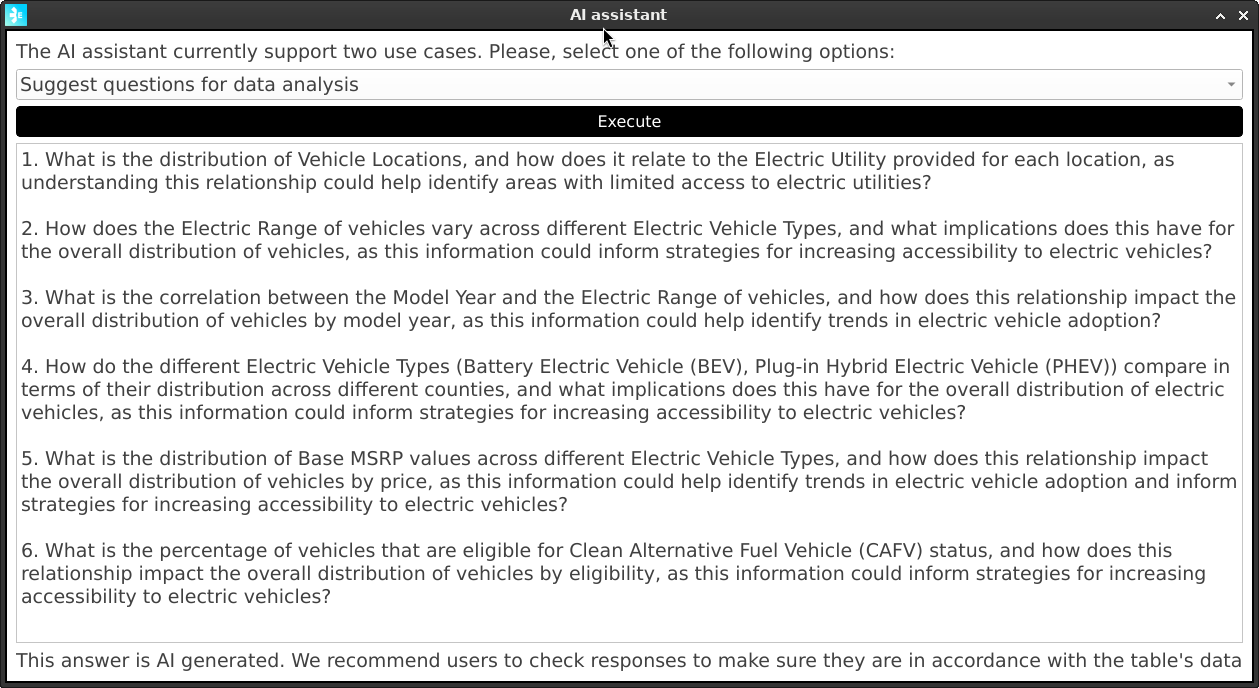
How to use the AI component
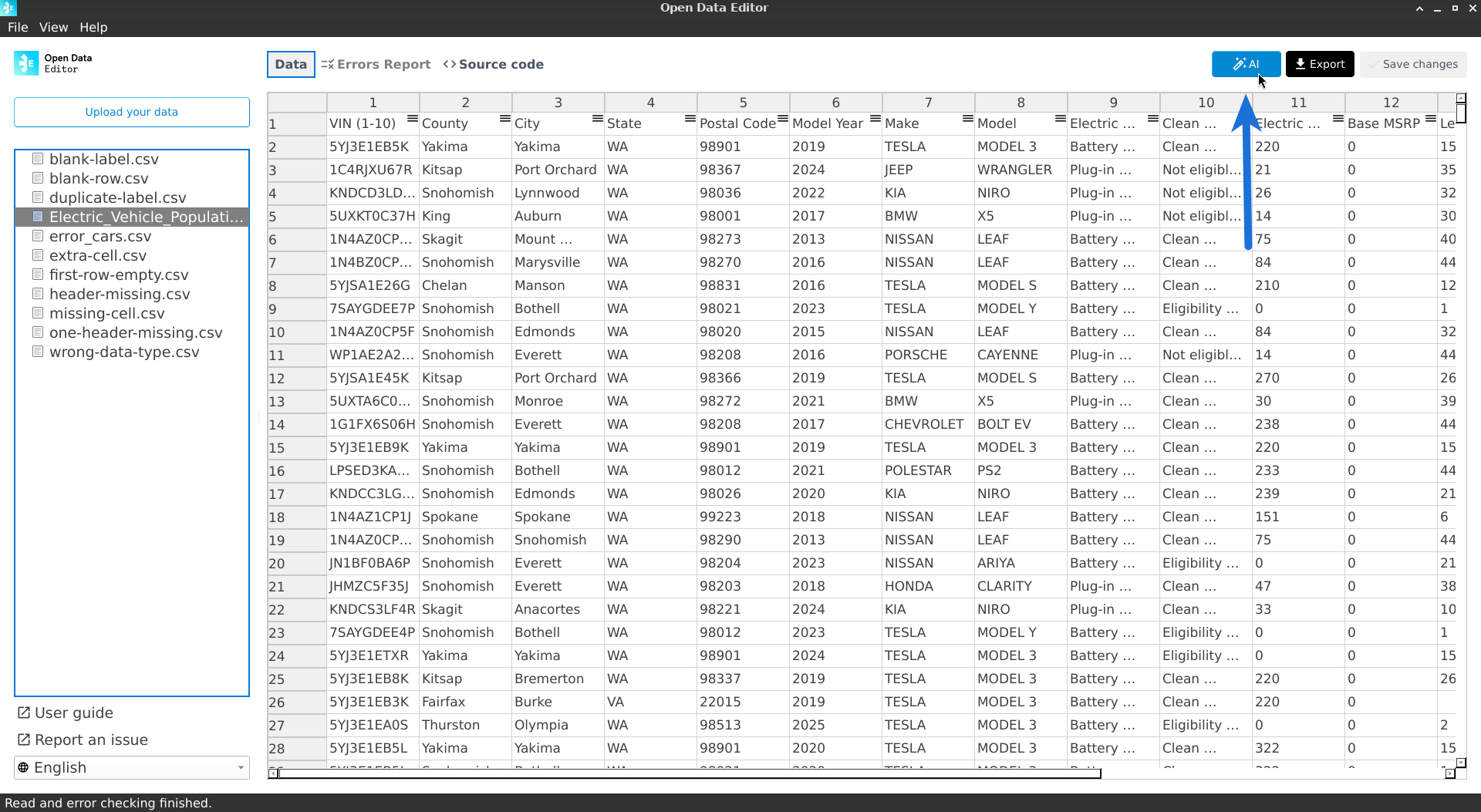
To use the AI assistant, select a file from the sidebar, and then click on the AI button located in the top right corner of the app:
ODE will show a dialogue to assist the user in downloading the model:
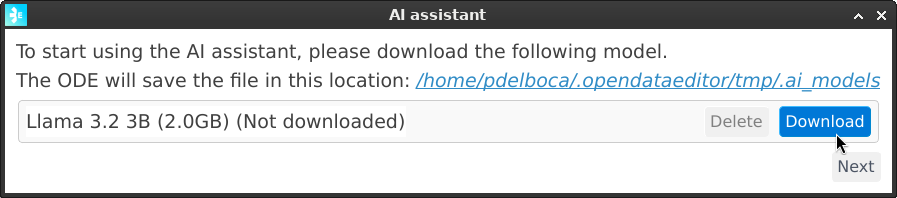
Once the model is downloaded, users will be able to click on the Next button to continue.
AI Use Cases
ODE has two use cases for the AI component:
Assist users in understanding the columns of a table.
Suggest analysis and questions that users can use to query the data.
To choose the use case, select it from the dropdown menu.
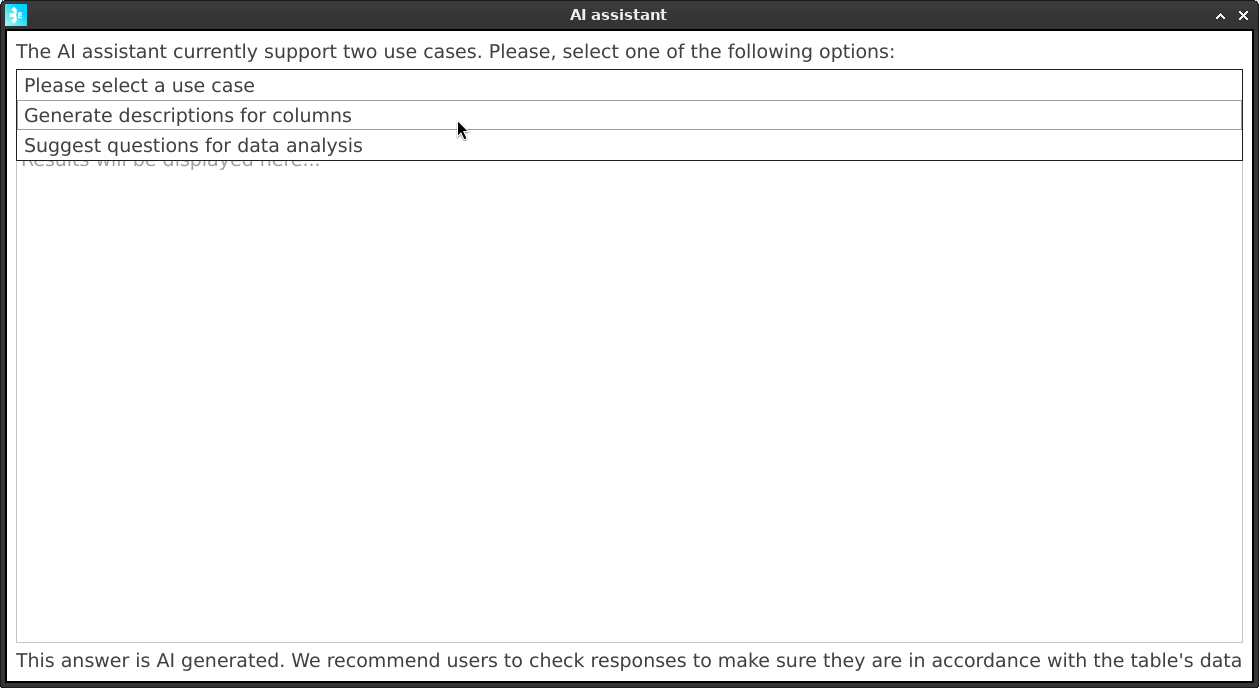
Once selected, click on the Execute button to get a response from the AI model.
Note
Depending on the hardware of the users’ machines, the response time can vary. Usually, it will take around 10 seconds to get a response. :::
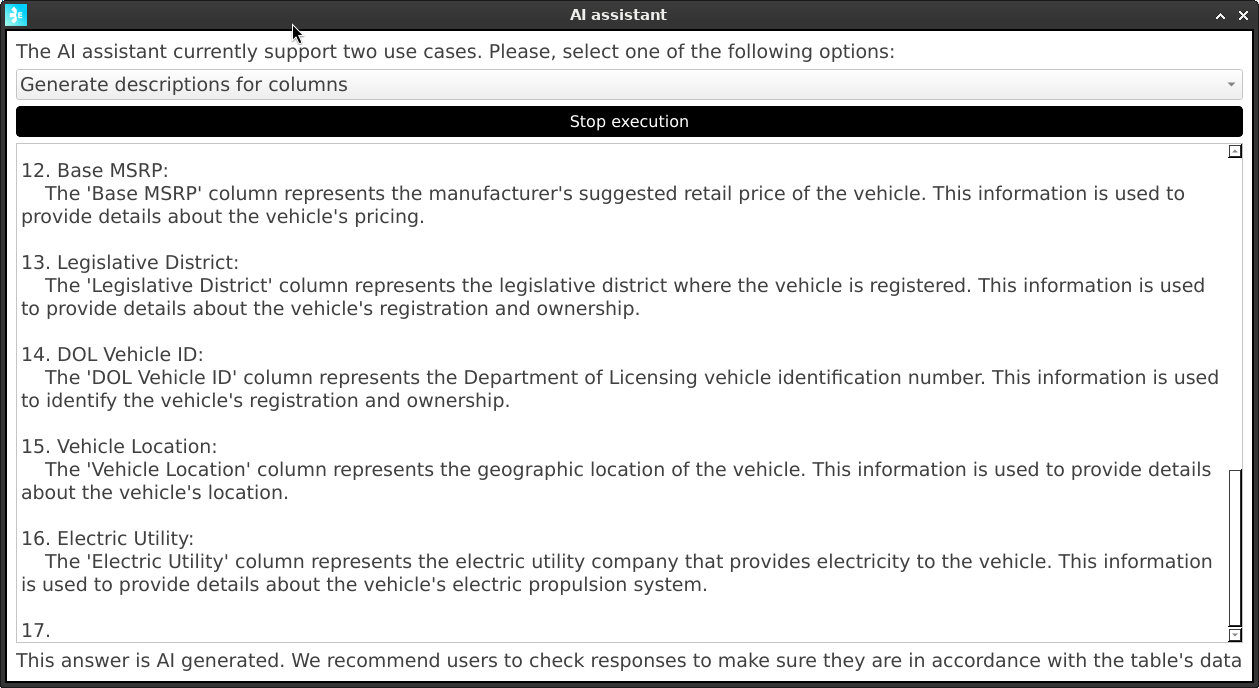
Assist users in understanding the columns of a table
The AI model will analyse the columns’ names, types and some sample data and will generate a description of each column. This is useful to understand the data better, clarify technical or complex names, expand acronyms, etc.
Suggest analysis and questions that users can use to query the data
The AI model will analyse the columns’ names, types and some sample data and will generate a list of questions that the user can use to query the data.